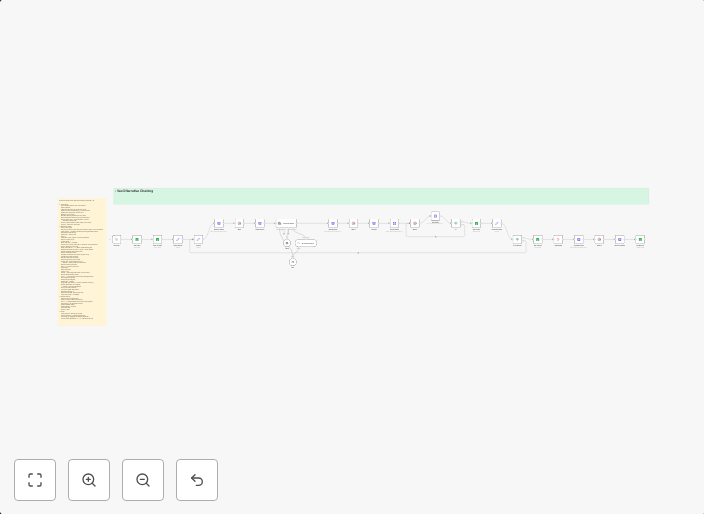
Narrative chaining: AI-generated video scene extensions with Veo3
Structured Setup Guide: Narrative Chaining with N8N + AI 1. Input SetupUse a Google Sheet as the control panel.Fields required:Video URL (starting clip,...
Get This WorkflowAbout This Workflow
What This Workflow Does
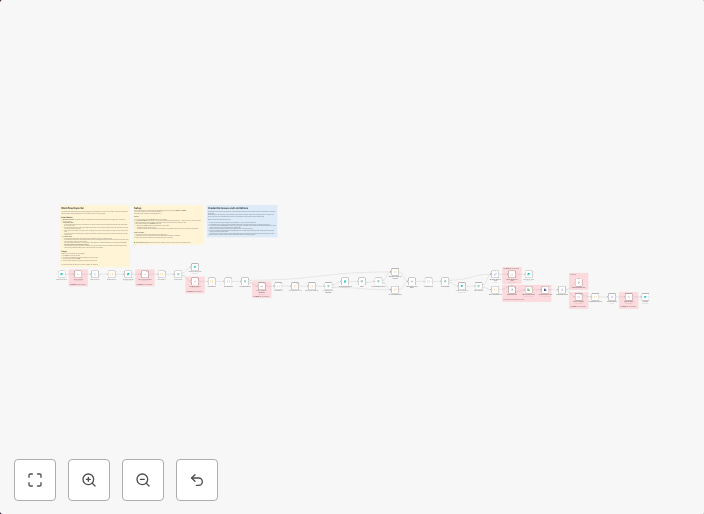
This n8n automation workflow enables narrative chaining, allowing you to extend AI-generated video scenes with Veo3. It automates the process of generating and combining multiple video scenes to create a seamless and engaging narrative. The workflow uses a Google Sheet as the control panel to manage inputs and settings.
Who Should Use This
This workflow is ideal for content creators, marketers, and business owners who want to leverage AI-generated video content and automate the process of creating engaging narratives. It's particularly useful for those who want to scale their video content production without manual effort.
Key Features
- AI-Generated Video Scene Extensions: The workflow integrates with Veo3 to generate AI-powered video scenes based on input data.
- Google Sheet Control Panel: Use a Google Sheet to manage inputs, settings, and video scene extensions in a centralized control panel.
- Narrative Chaining: Automate the process of combining multiple video scenes to create a cohesive narrative.
- Scalable Video Content Production: Easily scale your video content production without manual effort, saving time and resources.
How to Get Started
To use this workflow, import it into your n8n instance and customize the Google Sheet control panel to suit your needs. Configure the workflow settings, including the Veo3 integration, to generate AI-powered video scenes and extend your narrative.
Use This Workflow in n8n →Similar Workflows
Affiliate Disclosure: We may earn a commission if you sign up for n8n through our links. This doesn't affect our recommendations.