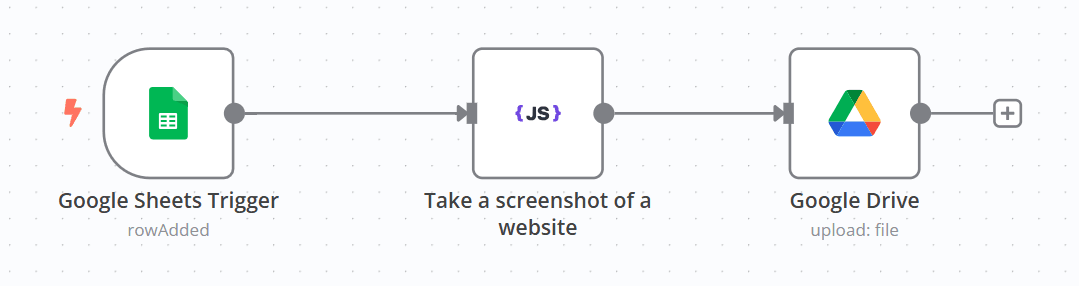
Capture website screenshots via Google Sheets to Google Drive with CustomJS
n8n Workflow: Automating Website Screenshots from Google Sheets This n8n workflow captures screenshots of websites listed in a Google Sheet and saves them...
Get This WorkflowAbout This Workflow
What This Workflow Does
This n8n workflow captures screenshots of websites listed in a Google Sheet and saves them directly to Google Drive. It utilizes CustomJS to customize the screenshot process, making it a powerful tool for automating website screenshots. With this workflow, users can easily maintain a visual record of website updates and changes.
Who Should Use This
This workflow is ideal for marketers, business owners, and developers who need to monitor website updates, track design changes, or verify website performance. It's perfect for anyone who wants to automate the process of capturing website screenshots and save time.
Key Features
- Captures screenshots of websites listed in a Google Sheet
- Saves screenshots directly to Google Drive
- Uses CustomJS for customizable screenshot settings
- Automates the process of capturing website screenshots, saving time and effort
How to Get Started
To use this workflow, import it into your n8n instance and customize the Google Sheet and Google Drive settings to match your specific needs. From there, simply add website URLs to your Google Sheet, and the workflow will take care of capturing and saving the screenshots for you.
Use This Workflow in n8n →Similar Workflows
Affiliate Disclosure: We may earn a commission if you sign up for n8n through our links. This doesn't affect our recommendations.