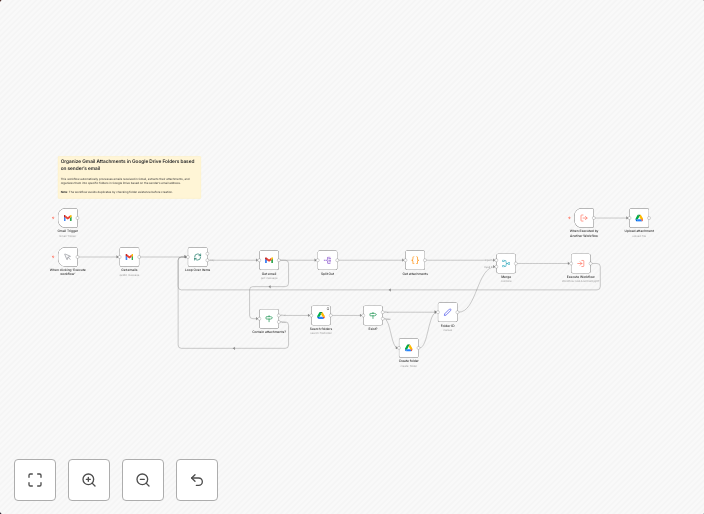
Organize Gmail attachments in Google Drive folders based on sender’s email
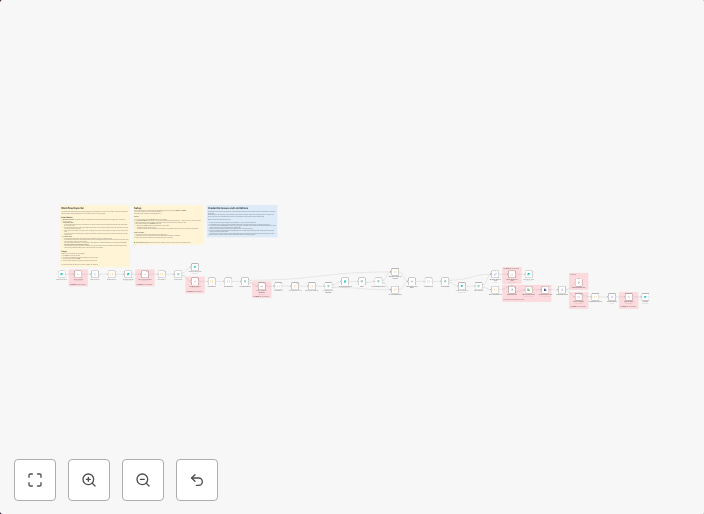
📩🤖 This workflow automatically processes emails received in Gmail, extracts their attachments, and organizes them into specific folders in Google Drive...
Get This WorkflowAbout This Workflow
What This Workflow Does
This automated workflow in n8n organizes Gmail attachments into specific folders in Google Drive based on the sender's email. It automates the process of file management, saving time and reducing manual effort. By categorizing attachments, users can easily find and access relevant files.
Who Should Use This
This workflow is ideal for individuals and teams who rely heavily on email communication and need to maintain organized digital files. It's particularly useful for businesses, marketers, and developers who receive multiple attachments from different senders and need to keep their files structured.
Key Features
- Automated File Organization: The workflow extracts attachments from Gmail emails and organizes them into predefined folders in Google Drive.
- Sender-Based Categorization: Files are categorized based on the sender's email, making it easy to locate attachments from specific senders.
- Improved Productivity: By automating file management, users can save time and focus on more critical tasks.
- Customizable: Users can modify the workflow to suit their specific needs, including adjusting folder structures and sender filters.
How to Get Started
To start using this workflow in n8n, simply import it into your account and customize the settings to match your Gmail and Google Drive accounts. You can then adjust the workflow to suit your specific file organization needs.
Use This Workflow in n8n →Similar Workflows
Affiliate Disclosure: We may earn a commission if you sign up for n8n through our links. This doesn't affect our recommendations.