Scheduled Google Sheets data backup to Google Drive
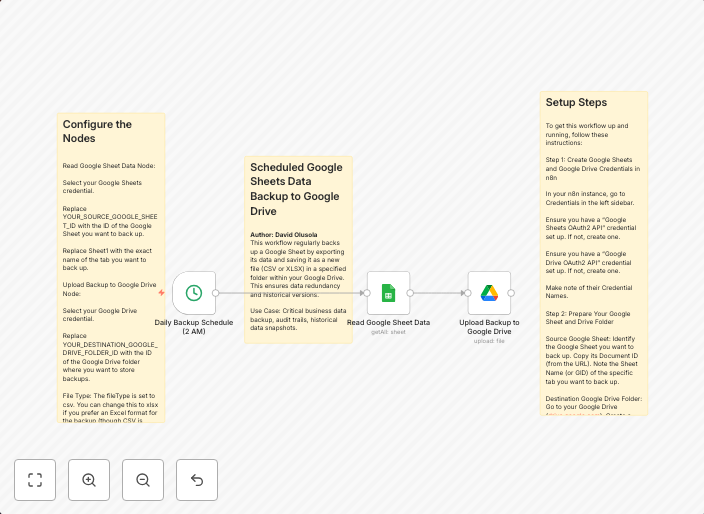
OverviewThis workflow regularly backs up a Google Sheet by exporting its data and saving it as a new file (CSV or XLSX) in a specified folder within your...
Get This WorkflowAbout This Workflow
What This Workflow Does
This workflow automates the regular backup of a Google Sheet by exporting its data as a CSV or XLSX file and saving it to a specified folder in Google Drive. The workflow ensures that your data is safely stored and easily accessible in case of unexpected changes or losses. It also helps maintain a historical record of your Google Sheet data.
Who Should Use This
This workflow is suitable for anyone who relies heavily on Google Sheets for data management, such as developers, marketers, and business owners. It is particularly useful for teams or individuals who need to keep a record of their data over time.
Key Features
- Scheduled backup: The workflow runs at a specified interval, ensuring that your Google Sheet data is backed up regularly.
- File format options: You can choose to export your Google Sheet data as either a CSV or XLSX file, depending on your needs.
- Google Drive integration: The workflow saves the backed-up data directly to a specified folder in your Google Drive account, making it easily accessible.
- Flexibility: You can customize the workflow to fit your needs, including setting the backup interval, file format, and destination folder.
How to Get Started
To use this workflow, simply import it into your n8n account and customize it by setting the Google Sheet, backup interval, file format, and destination folder to suit your needs. This workflow is designed to be easy to set up and use, so you can start backing up your Google Sheet data quickly and efficiently.
Use This Workflow in n8n →Similar Workflows
Affiliate Disclosure: We may earn a commission if you sign up for n8n through our links. This doesn't affect our recommendations.